
Small web teams often have alerting before they have an incident process. Someone receives an email, SMS, push notification, or phone call. A chat message follows. Then a developer, support person, or founder starts investigating while customers ask what is going on.
That can work when the outage is simple. It becomes stressful when three people investigate the same symptom, nobody knows who owns the response, and customer communication happens in fragments.
You do not need a heavy enterprise incident-management process to improve this. You need a lightweight routine that starts when an alert arrives and ends only after the team has captured what happened and what should change next.
Step 1: route alerts to named owners
An alert is only useful if someone knows they are expected to act on it. For every important monitor, define:
- Who receives the first alert
- How quickly that person should acknowledge it
- Who gets escalated if there is no response
- Which communication channel should be used for urgent incidents
- Which services or customers are affected by that monitor
This is especially important for agencies and small SaaS teams. A broken marketing page, a failed checkout flow, and a server-health alert may need different owners. Routing everything to one shared mailbox makes it easy to miss the difference.
Semonto can help by sending alerts through the channels your team uses. But the tool cannot decide your internal responsibilities for you. That part should be written down before the first serious incident.
Step 2: open the incident record
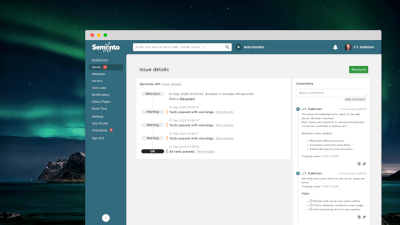
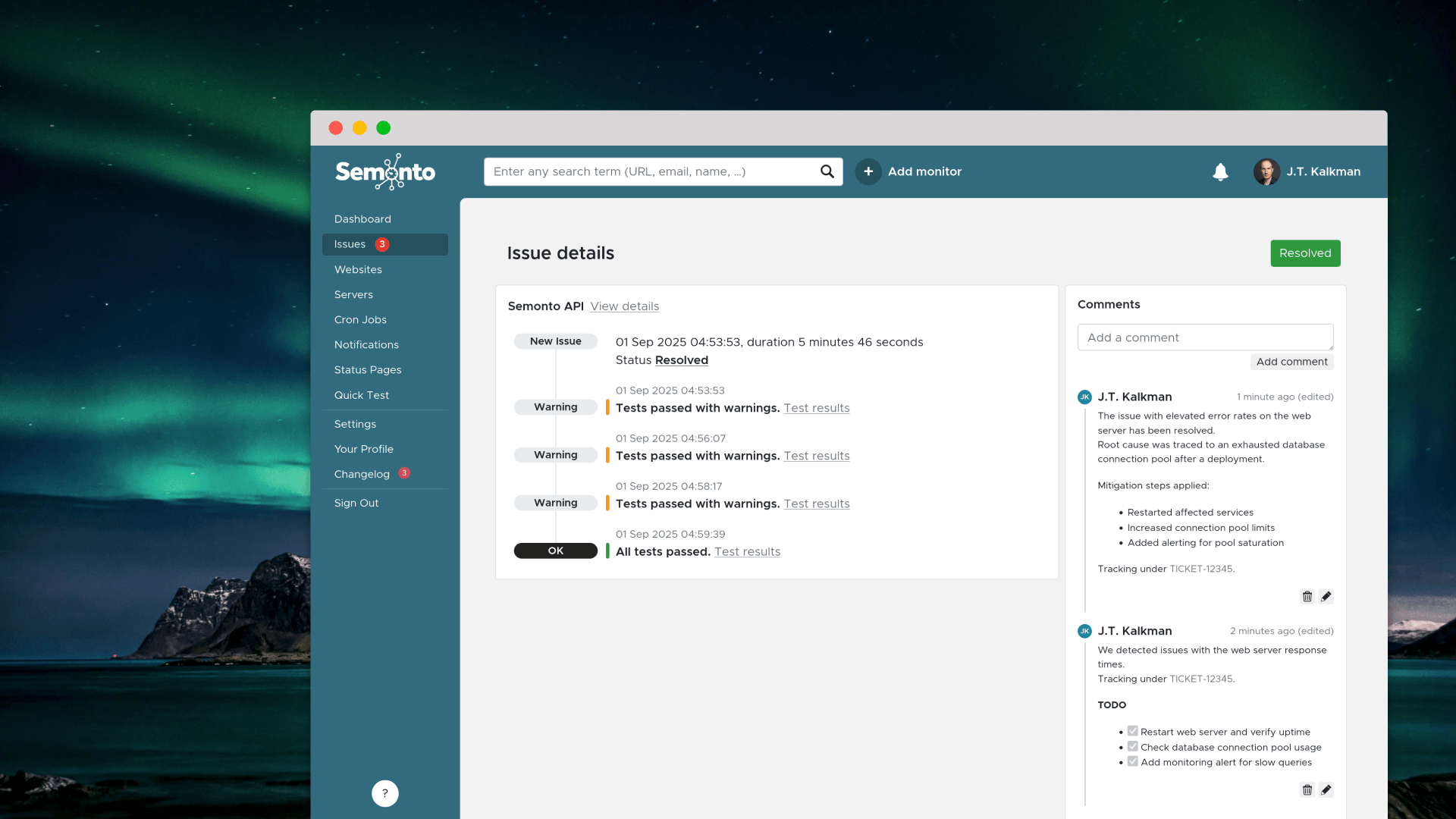
When an alert is actionable, create one place where the incident is tracked. In Semonto, the incident record can show which test failed and when. With Incident Management, you can add comments, change the status, and mention an internal ticket number so everyone knows where deeper engineering or support work is happening.
Use the incident record for operational facts:
- What symptom was detected?
- When did it start?
- Who acknowledged it?
- What status is it in now?
- Which engineering or support ticket contains the deeper investigation?
- What decisions were made during the response?
Keep longer debugging notes in the tool your engineering team already uses, such as Jira, GitHub Issues, Linear, or your support desk. The Semonto incident record should be the shared operational timeline, not a replacement for application logs or infrastructure telemetry.
Step 3: separate internal coordination from customer communication
Internal notes and public updates have different jobs. Internally, you need enough detail to coordinate the response. Publicly, customers need a concise answer to three questions:
- Are you aware of the issue?
- Is there a workaround or expected impact?
- When will the next update arrive?
This is where a status page helps. Semonto's Status Pages automatically show the current status of selected monitors and, if you choose, their test results. Depending on your setup, the page can be public or private. It does not publish manually written incident updates.
Use your usual customer channel, such as email, a support desk, or a separately managed announcement page, to explain the impact, any workaround, and when you will update customers again. Do not wait until you know the root cause before communicating. A short investigation message in that channel is often better than silence. For example:
We are investigating elevated errors on the customer dashboard. Monitoring detected the issue at 09:14 UTC. We will post the next update within 30 minutes.
That message does not overpromise. It gives customers confidence that the issue has been detected and that someone owns the next update. The Semonto Status Page separately shows what the selected monitors are reporting.
Step 4: use clear incident statuses
Simple status language keeps everyone aligned. You do not need twenty states. Four are usually enough:
- Investigating: the team confirms the symptom and scope.
- Mitigating: a likely fix, rollback, provider escalation, or workaround is in progress.
- Monitoring: the service appears stable again, but the team is watching before declaring resolution.
- Resolved: the user-visible impact has ended.
Inside Semonto, you can move an issue from open to in progress and add comments as the situation changes. When Semonto sees that the monitored problem is resolved, it can automatically close the issue. That is useful, but it should not be the end of the human workflow.
"Back up" means the symptom recovered. It does not necessarily mean the team understands why it happened or what should prevent a repeat.
Step 5: review after recovery
After the incident, spend ten minutes answering practical questions:
- How long did the user-visible impact last?
- Which customers, pages, regions, or services were affected?
- Did monitoring detect the problem before customers reported it?
- Did the alert reach the right person?
- Was the escalation path clear?
- Did the status page reflect the monitored state, and were separate customer updates timely and accurate?
- What follow-up work should become a ticket?
This does not need to become a long postmortem. The goal is to turn an incident into better operations. Maybe the fix is a new monitor, a better notification threshold, a clearer owner, a missing runbook, or a cleanup task in the application.
What Semonto can and cannot tell you
Semonto observes the external and server signals you configure. It can tell you that a website is unreachable, a certificate has a problem, a server check failed, or a monitored condition changed. It can also help you notify the right people, document the incident, and automatically display selected monitoring status.
That is not the same as root-cause analysis. Diagnosis still needs application logs, infrastructure metrics, deployment history, database checks, DNS evidence, provider status pages, and human investigation.
Keeping that boundary clear makes the workflow stronger. Semonto gives you timing, symptoms, alerts, and a place to coordinate. Your engineering and support tools explain the deeper cause and track the long-term fix.
A simple workflow to copy
Here is a lightweight version you can adapt:
- Alert arrives and is routed to the named owner.
- Owner acknowledges and opens or updates the Semonto incident.
- Owner links the engineering or support ticket.
- Team posts an internal comment with the current hypothesis and next action.
- If customers may notice, check the automated Semonto Status Page and send a short message through your customer communication channel.
- Team tracks its response from investigation through mitigation and monitoring, updating the Semonto issue as needed.
- Once recovered, confirm the monitored status has returned to normal, send a final message through the same customer channel, and add a closing note to the Semonto issue.
- Create follow-up tickets for prevention, documentation, or monitoring gaps.
The exact tools matter less than the habit. One alert becomes one incident record, one owner, one customer communication path, and one review. That is enough structure for most small teams to respond faster and communicate more calmly.
The main takeaway
Alerting tells you something needs attention. Incident workflow tells your team what happens next.
For small web teams, the best process is usually lightweight: named owners, clear escalation, one incident record, linked tickets, concise customer messages, and a short review after recovery. That keeps internal coordination and customer communication connected without turning every website alert into a heavy process.
Latest blogs

Tips and Tricks
Let’s Encrypt’s 64-day certificates: check your renewal setup
Tips and Tricks
DNSSEC's 2026 stress test: what to check before the October root-key rollover
Tips and Tricks