
HTTPS has been the expected default for years, but old HTTP URLs have a way of surviving. They sit in campaign landing pages, QR codes, PDF brochures, old redirects, staging shortcuts, partner links, file downloads, and forgotten subdomains.
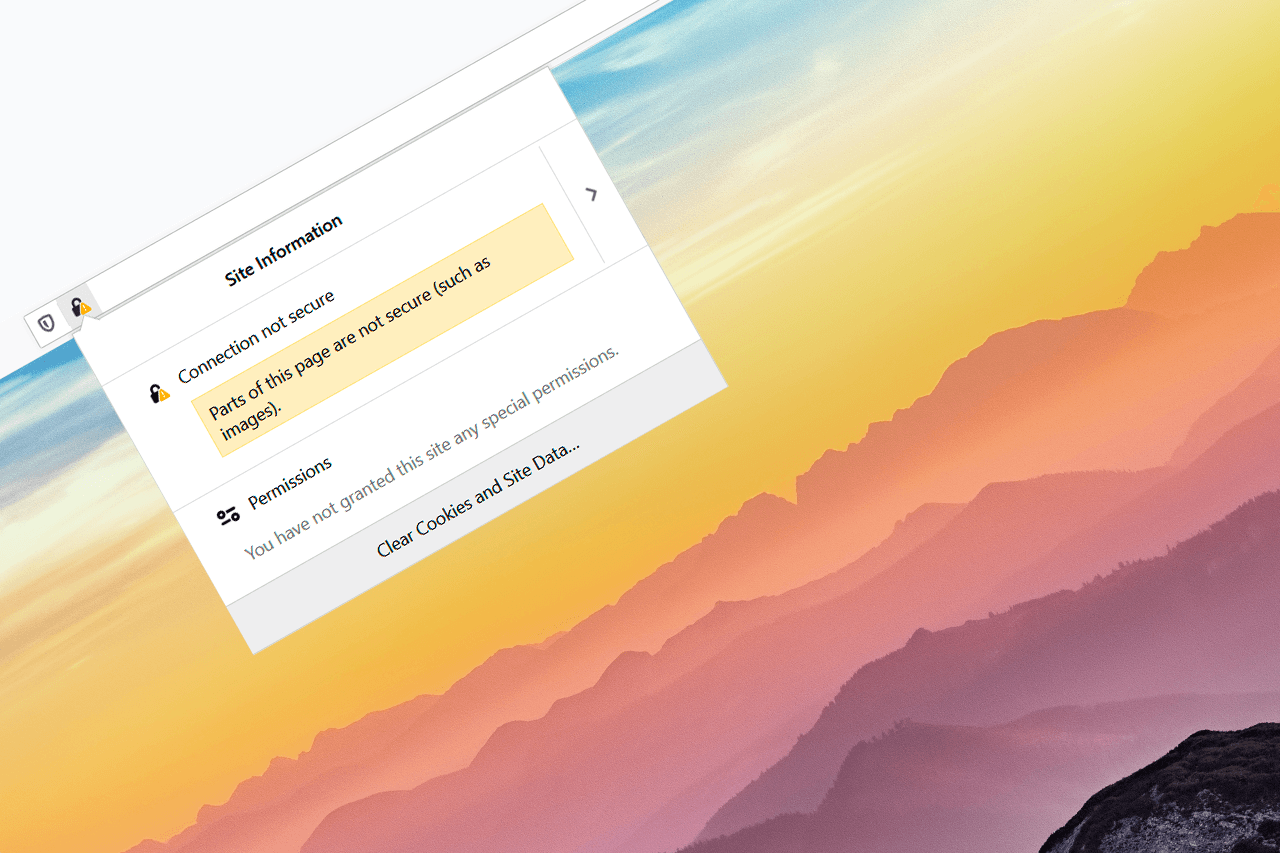
In October 2026, those leftovers become more visible. The Chrome Security Team has announced that Chrome 154 will enable "Always Use Secure Connections" by default for public sites. Chrome will try HTTPS first. If HTTPS is unavailable, the browser will ask before continuing over HTTP. Google explains the rollout in its HTTPS by default announcement.
There was also an earlier step. In April 2026, Chrome 147 enabled the same public-sites variant for users who opted in to Enhanced Safe Browsing. The October 2026 release is the broader moment to prepare for, because it changes the default behaviour for public websites.
What Chrome is changing
The browser is not simply changing the wording of the "Not secure" label. Chrome will attempt the navigation over HTTPS first. If the hostname supports HTTPS, the visitor should not see a warning just because the link was written as http://.
The warning appears when HTTPS is unavailable for a public site and Chrome would otherwise have to continue over HTTP. That is the important audit signal for website owners: find public hostnames that still do not have a working HTTPS endpoint.
Google says the warning should not be constant noise for most users: the median user sees fewer than one warning per week, the 95th percentile fewer than three, and Chrome does not re-warn for sites a user visits regularly. Private sites, such as local IP addresses and single-label internal hostnames, are excluded from this public-sites rollout.
For website owners, this is still a good reason to audit more than the homepage. The pages you forgot are often the pages your customers still find through old bookmarks, search results, email campaigns, printed material, or partner portals.
Start with HTTP-only pages
List every public domain and subdomain you own, not only the ones in your main CMS. Then check whether each public URL supports HTTPS directly. Semonto's free HTTPS checker and reachability checker can help with the first pass. Pay attention to:
- Old campaign domains
- Regional or language-specific domains
- Legacy landing pages
- Download hosts
- Documentation or support subdomains
- App callback URLs
- Short links and QR-code destinations
If a page still only works over HTTP, decide whether to migrate it, redirect it safely to an HTTPS replacement, or retire it. Do not leave it in place simply because "nobody uses it anymore" unless you have checked logs, links, and monitoring data.
Check redirect hops
Many sites appear fine because http://example.com eventually lands on https://www.example.com. That is better than staying on HTTP, but it is not the same as having HTTPS available on every hostname in the chain.
With Chrome's HTTPS-first behaviour, the original hostname matters. If http://old.example.com redirects to https://www.example.com but https://old.example.com does not work, Chrome may warn before the browser ever receives the HTTP redirect. Either give the old hostname a valid HTTPS endpoint that redirects to the canonical HTTPS URL, or update and retire the old links.
Audit the full redirect chain as a hygiene check. Look for hops that bounce through old domains, depend on third-party systems you no longer manage, or land on hostnames without certificate coverage. Each extra hop is another place where configuration can be stale.
The ideal path is simple:
- The original hostname supports HTTPS.
- The HTTPS version redirects to the canonical HTTPS URL when needed.
- The certificate on each HTTPS hostname is valid.
- The final page loads without mixed content.
- The redirect does not depend on an abandoned campaign tool or legacy hosting account.
HSTS is the stronger end state for repeat visits because it tells browsers to use HTTPS automatically. For now, treat HSTS review as a manual configuration check.
Verify certificates and hostname coverage
HTTPS is not just a switch. The certificate must be valid for the hostname, trusted by browsers, served with the correct chain, and renewed on time.
Review these points for every public hostname:
- Does the certificate include this hostname?
- Is the certificate close to expiration?
- Is automatic renewal working?
- Is the certificate chain valid?
- Has the certificate been revoked?
- Are redirects sending users to a hostname covered by the certificate?
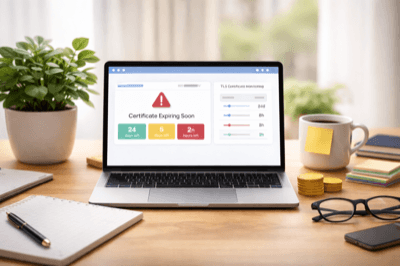
Semonto's TLS/SSL Certificate Monitoring checks expiration dates, the certificate chain, OCSP revocation status, and related SSL issues. You can also run a one-off check with the free HTTPS checker. This is useful because even automated renewal can fail, especially for old domains that nobody watches every week.
Do not forget downloads and embedded resources
Chrome's change is about public HTTP navigation, but the same preparation pass should include insecure resources and downloads. If the page itself is HTTPS but it loads scripts, images, stylesheets, iframes, or downloads over HTTP, users may still run into browser warnings or broken functionality.
Look for:
- Images or CSS files loaded from
http:// - JavaScript loaded from old CDN URLs
- Embedded videos or widgets with insecure URLs
- PDFs or software downloads still served over HTTP
- Mixed content on old blog posts or help pages
Mixed content is often introduced by older content rather than by the main template. A modern homepage can be clean while an old landing page still embeds an insecure asset.
Semonto's Mixed Content Monitoring is built for this part of the audit. It crawls the website you configure, checks for insecure HTTP resources on HTTPS pages, and notifies your team when mixed content appears. You can also run a quick scan with the free mixed content checker.
Test the setting before October
You do not have to wait for Chrome 154. Test the browser setting now in a controlled way and visit your important public URLs. In Chrome, open chrome://settings/security, enable Always Use Secure Connections, and select Warn on insecure public sites to mirror the Chrome 154 default. Include pages from analytics reports, search landing pages, old newsletters, support links, and customer-facing documentation.
Turn the results into a remediation timeline:
- Fix public hostnames without working HTTPS first.
- Redirect or retire forgotten campaign domains.
- Repair certificate coverage and renewal automation.
- Replace insecure embedded resources.
- Update documentation, email templates, QR codes, and partner links.
- Keep notes about the remaining exceptions and why they exist.
This work is easier before customers see warnings. Once the rollout reaches everyone, every overlooked public HTTP-only hostname can become a support question.
Where monitoring helps
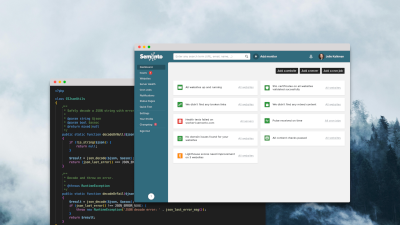
Monitoring helps you keep track of the public signals you configure. Semonto can monitor reachability, TLS/SSL certificate validity with TLS/SSL Certificate Monitoring, and insecure page resources with Mixed Content Monitoring, and then alert your team when something needs attention.
There is an important boundary. Semonto does not migrate your site to HTTPS, prove that every internal tool or private-network flow is ready, or currently certify HTTP-to-HTTPS redirect behaviour or HSTS policy coverage. It keeps monitoring focused on the public URLs and checks you configure, while your team handles remediation in the CMS, hosting platform, DNS provider, CDN, or application code.
The main takeaway
Chrome 154 is not the start of HTTPS being important. It is a new deadline that makes old HTTP leftovers harder to ignore.
Before October 2026, audit the forgotten corners of your web presence: old domains, redirect chains, certificate coverage, insecure downloads, and mixed content. Then put monitoring around the public URLs that matter most, so an expired certificate or reverted redirect does not quietly undo the cleanup later.
Latest blogs

Tips and Tricks
Let’s Encrypt’s 64-day certificates: check your renewal setup

Tips and Tricks
DNSSEC's 2026 stress test: what to check before the October root-key rollover
Tips and Tricks